Book Recurring Appointment for a Customer
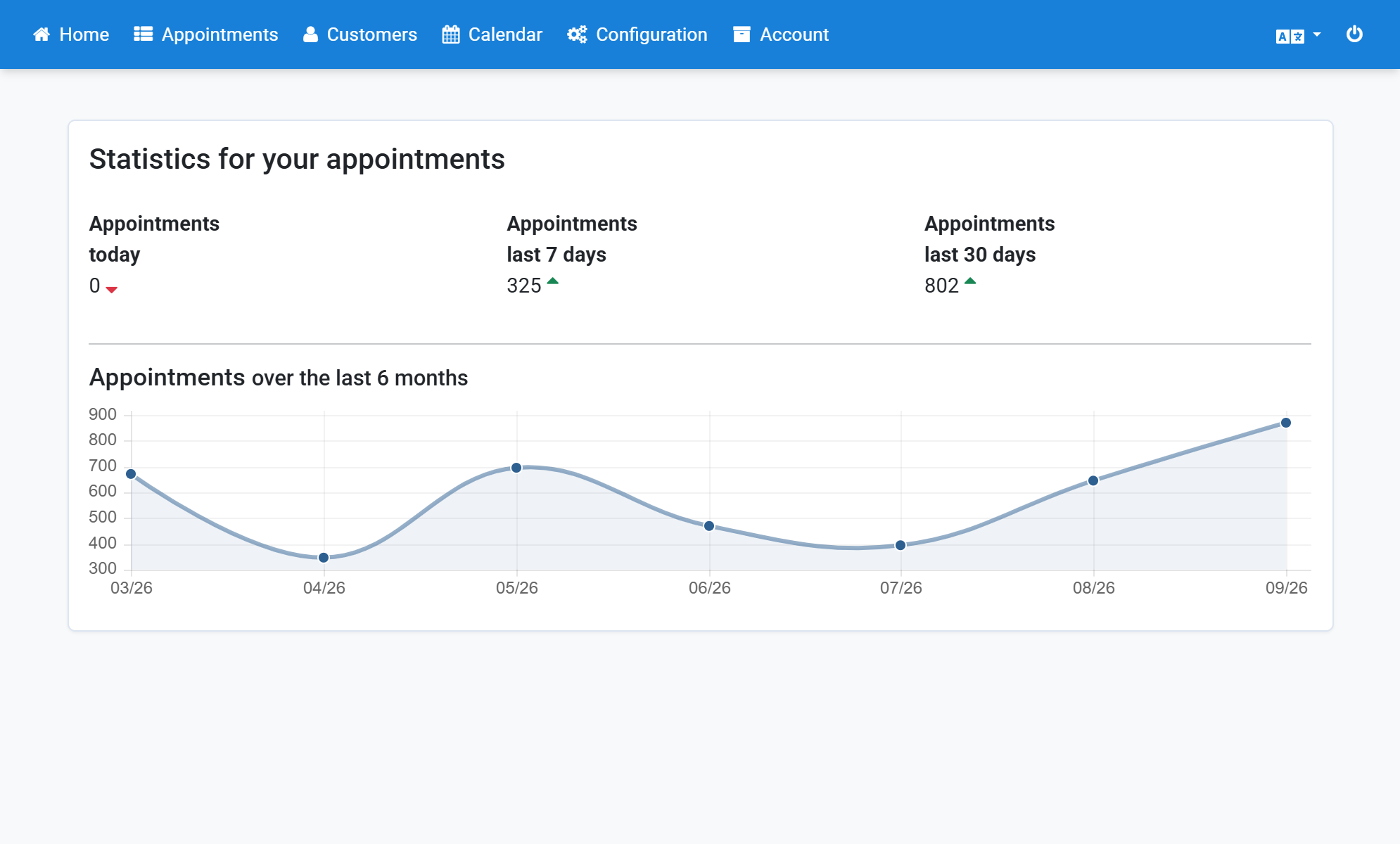
- Click Customers in the navigation bar.
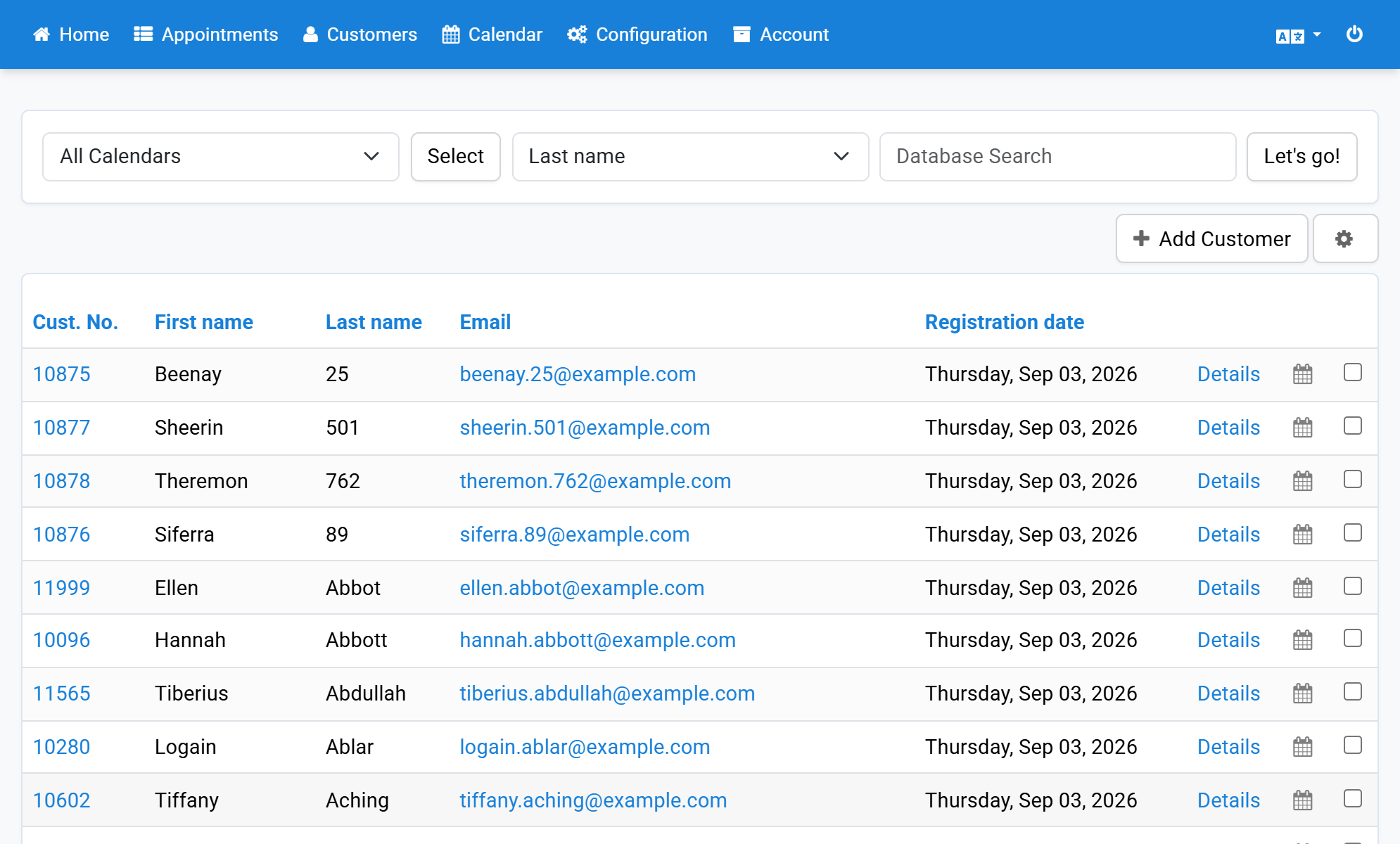
- Click the calendar icon in the customer list.
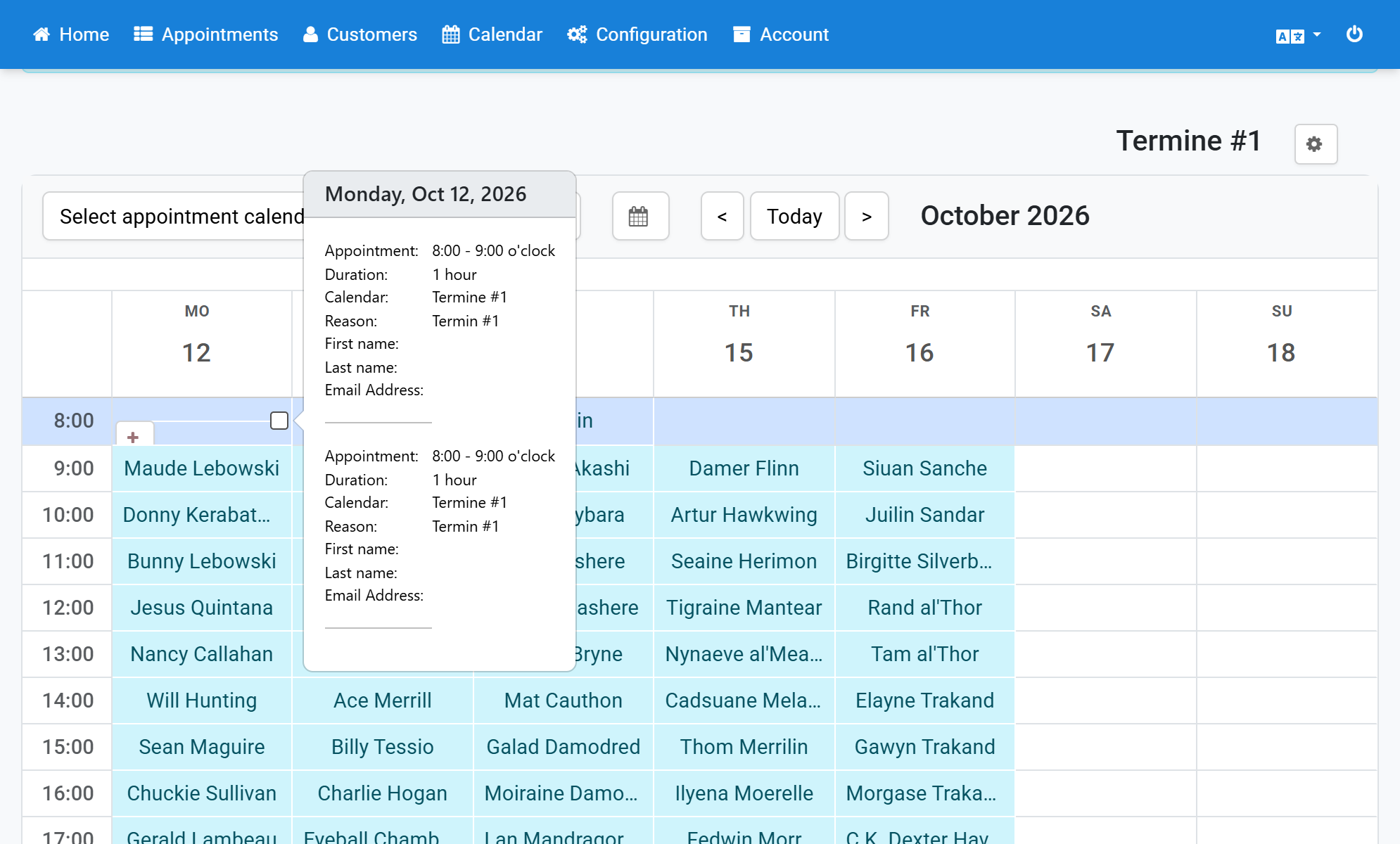
- Choose a day and a time and click the plus sign.
- Select a reservation reason.
- Select a repetition for the recurring appointment.
- Optionally select a date for the end of the recurring appointment.
- Alternatively you can enter the maximum number of appointments.
- Define whether the appointments take place every time or follow another rhythm.
- Click Save.
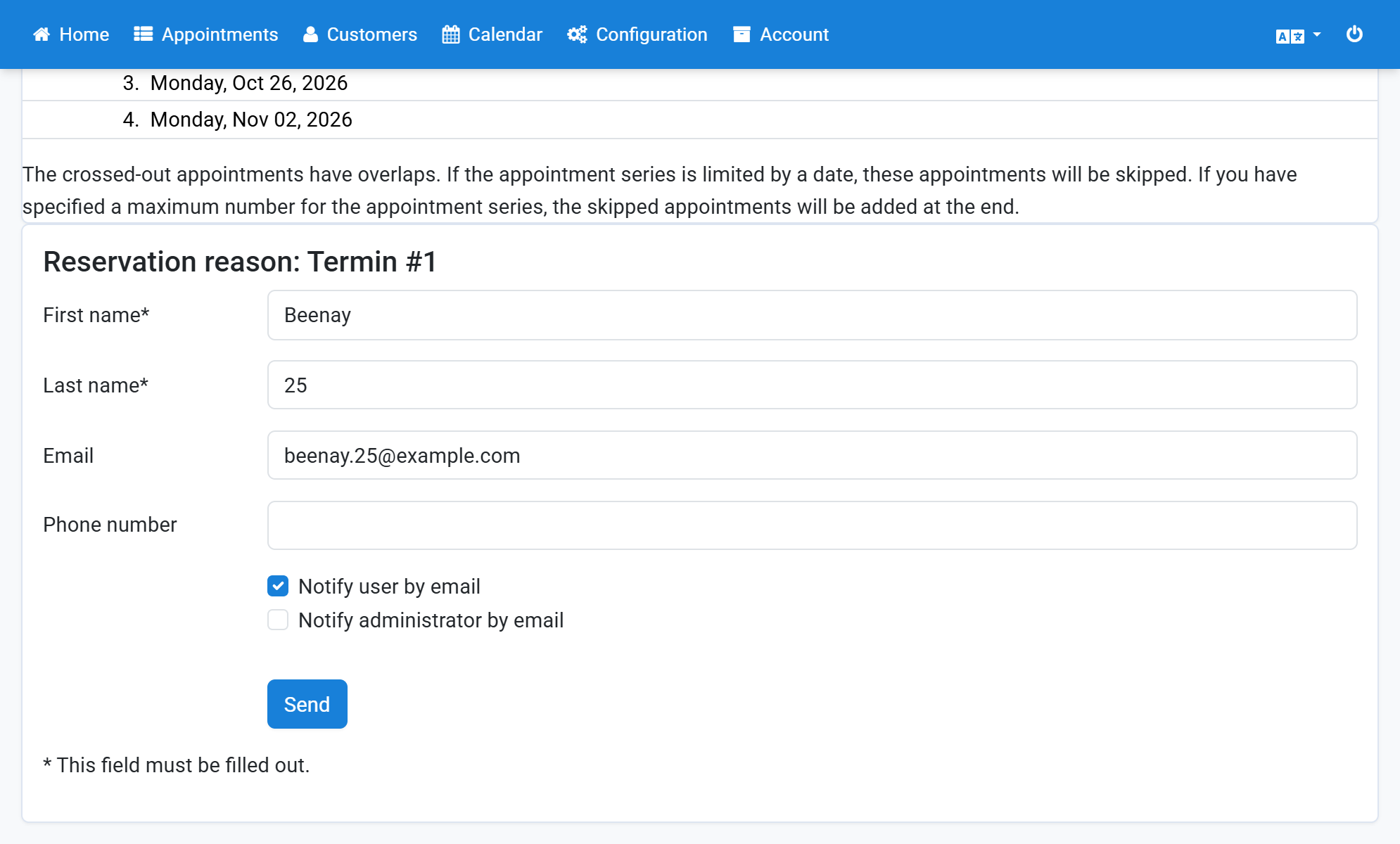
- Check the customer data.
- Select who should be notified about the appointment.
- Click Send.
Screenshots
Click Customers in the navigation bar
1
Click the calendar icon in the customer list
2
Choose a day and a time and click the plus sign
3
Select a reservation reason
4
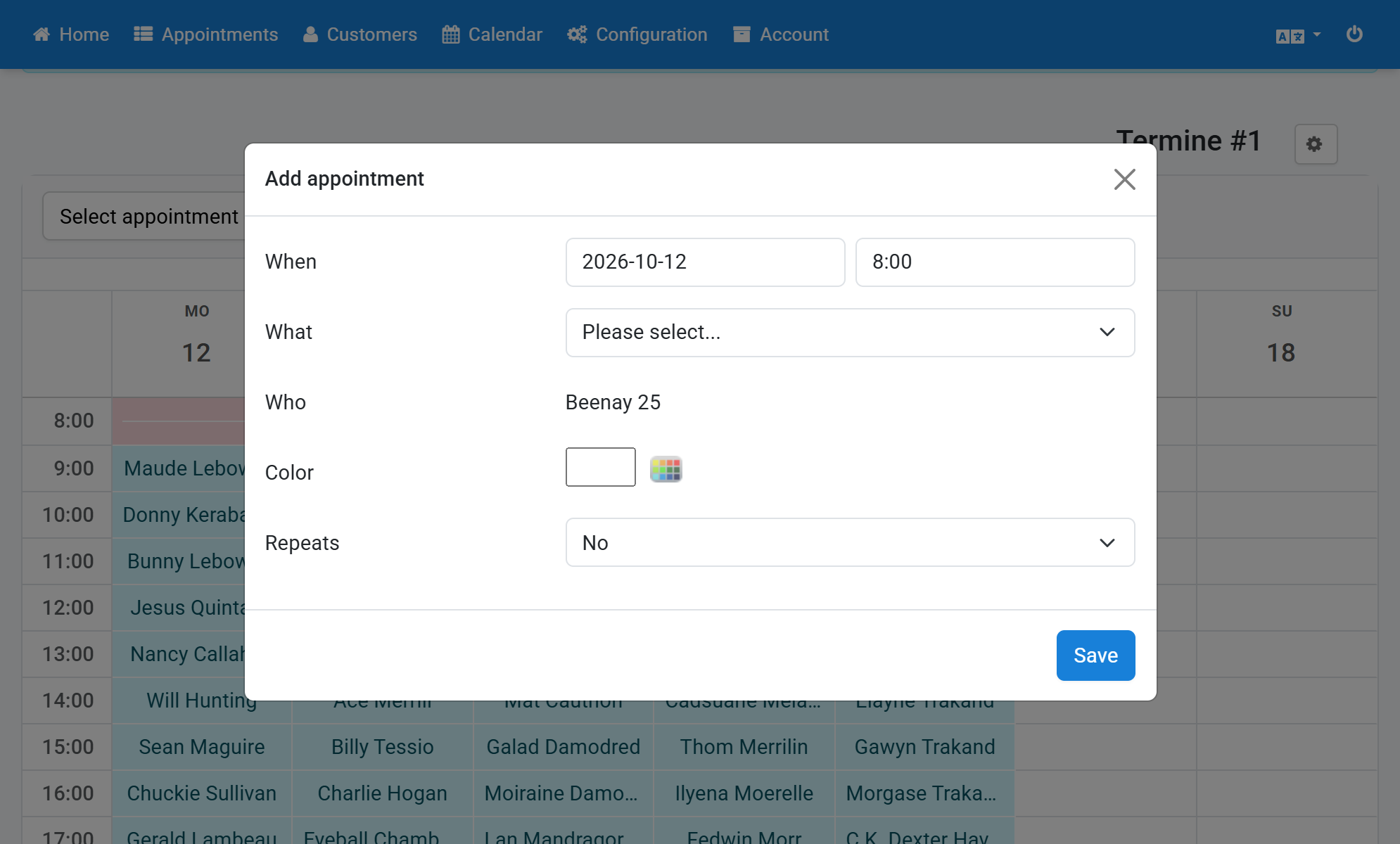
Select a repetition for the recurring appointment
5
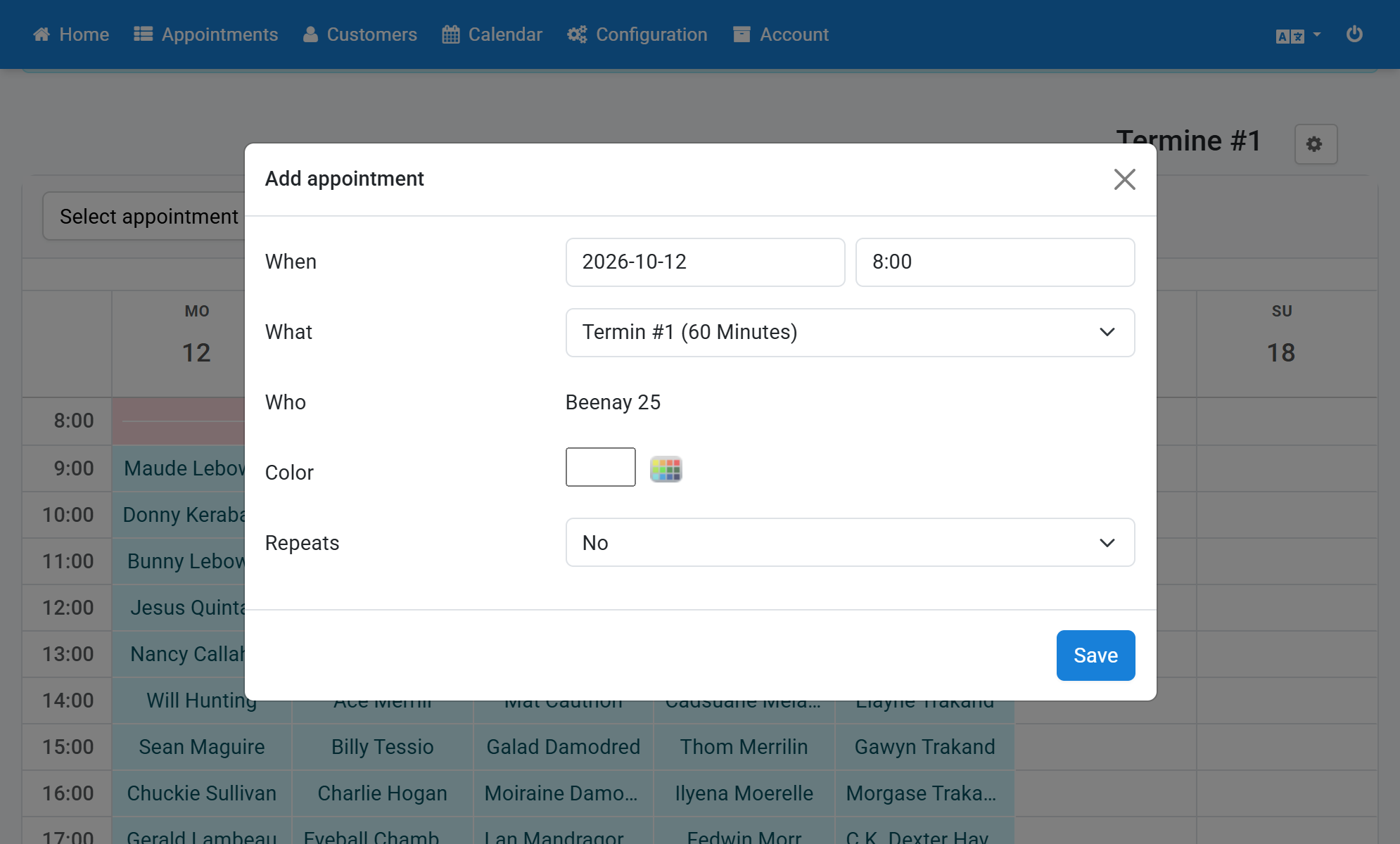
Optionally select a date for the end of the recurring appointment
6
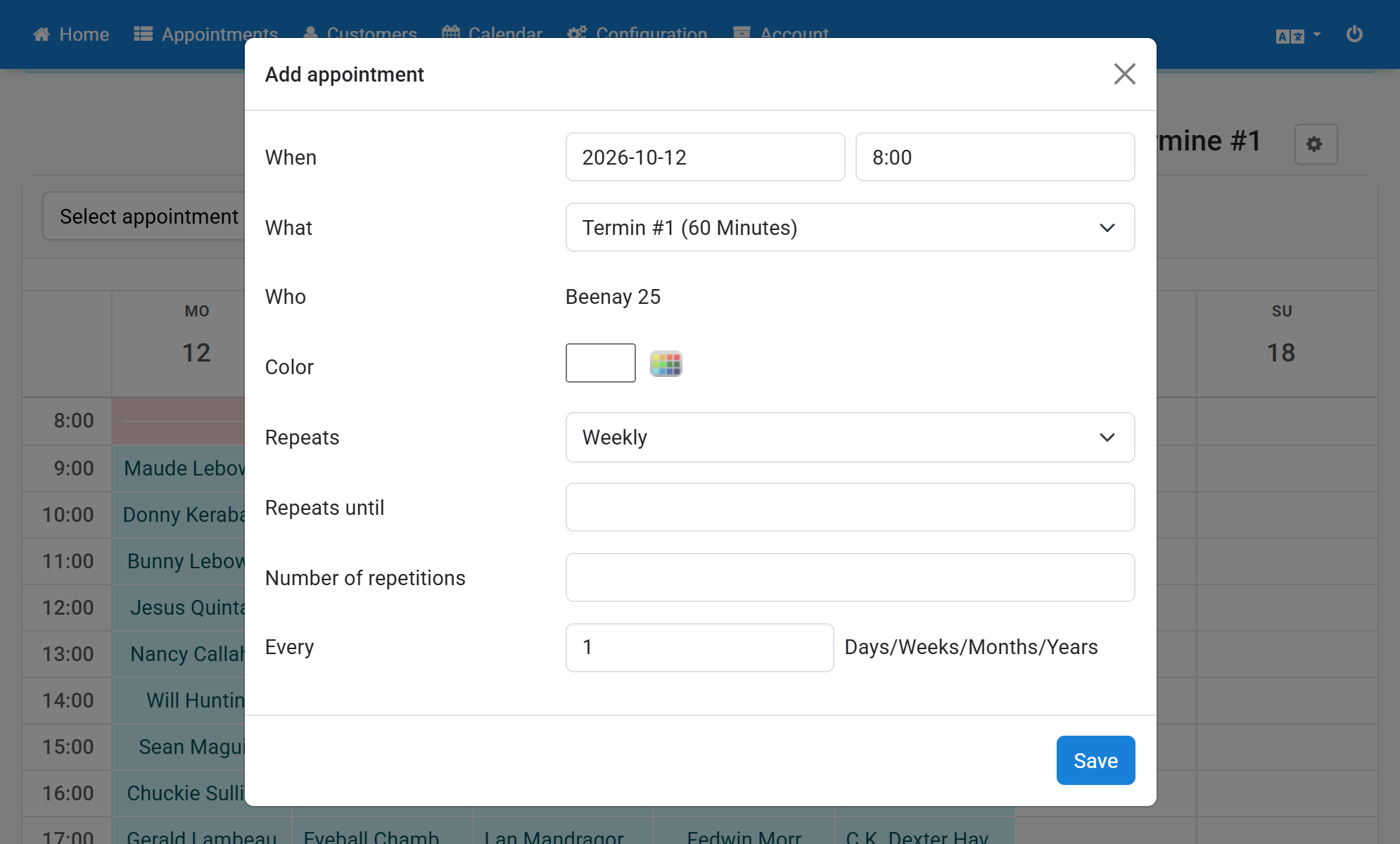
Alternatively you can enter the maximum number of appointments
7
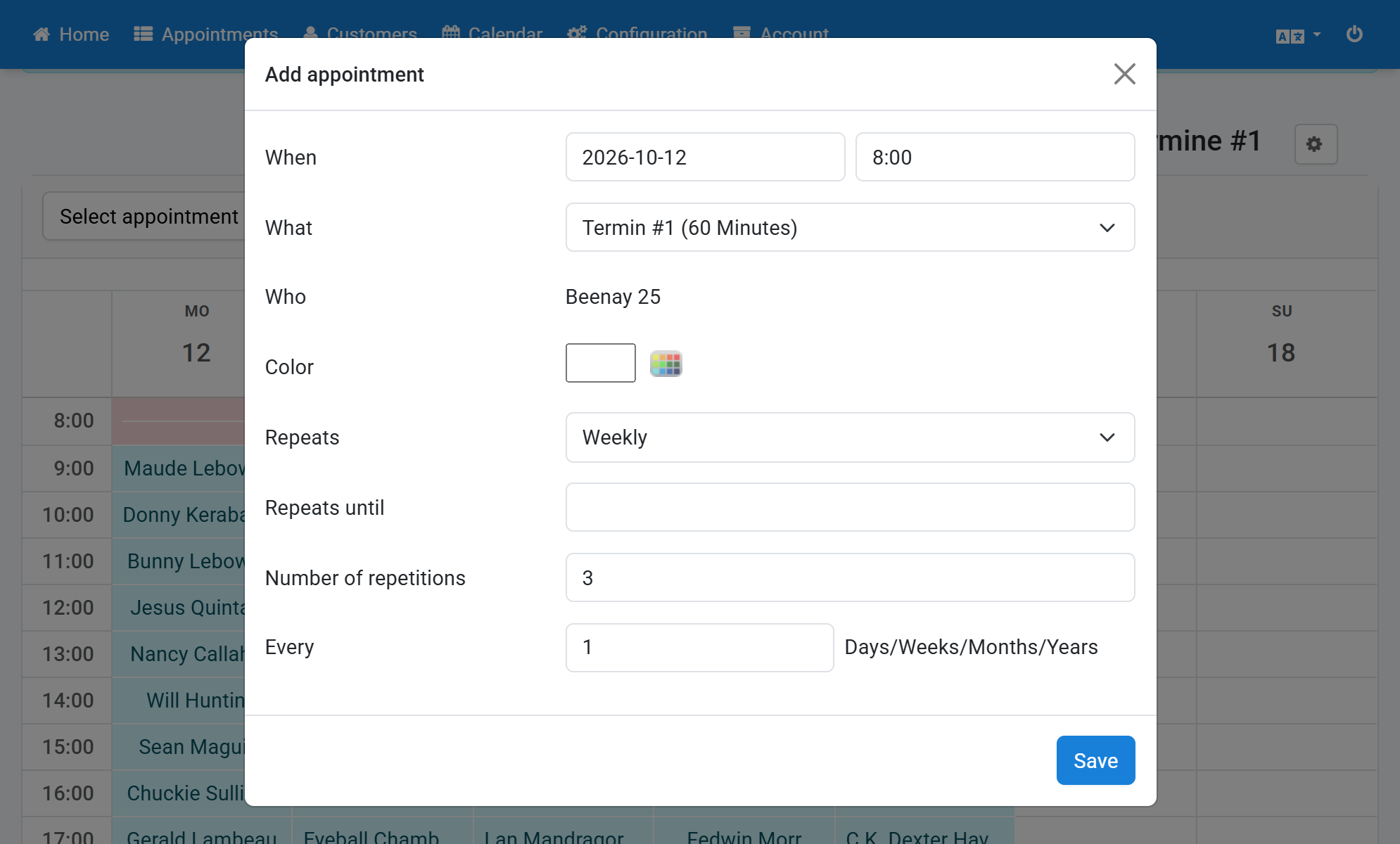
Define whether the appointments take place every time or follow another rhythm
8
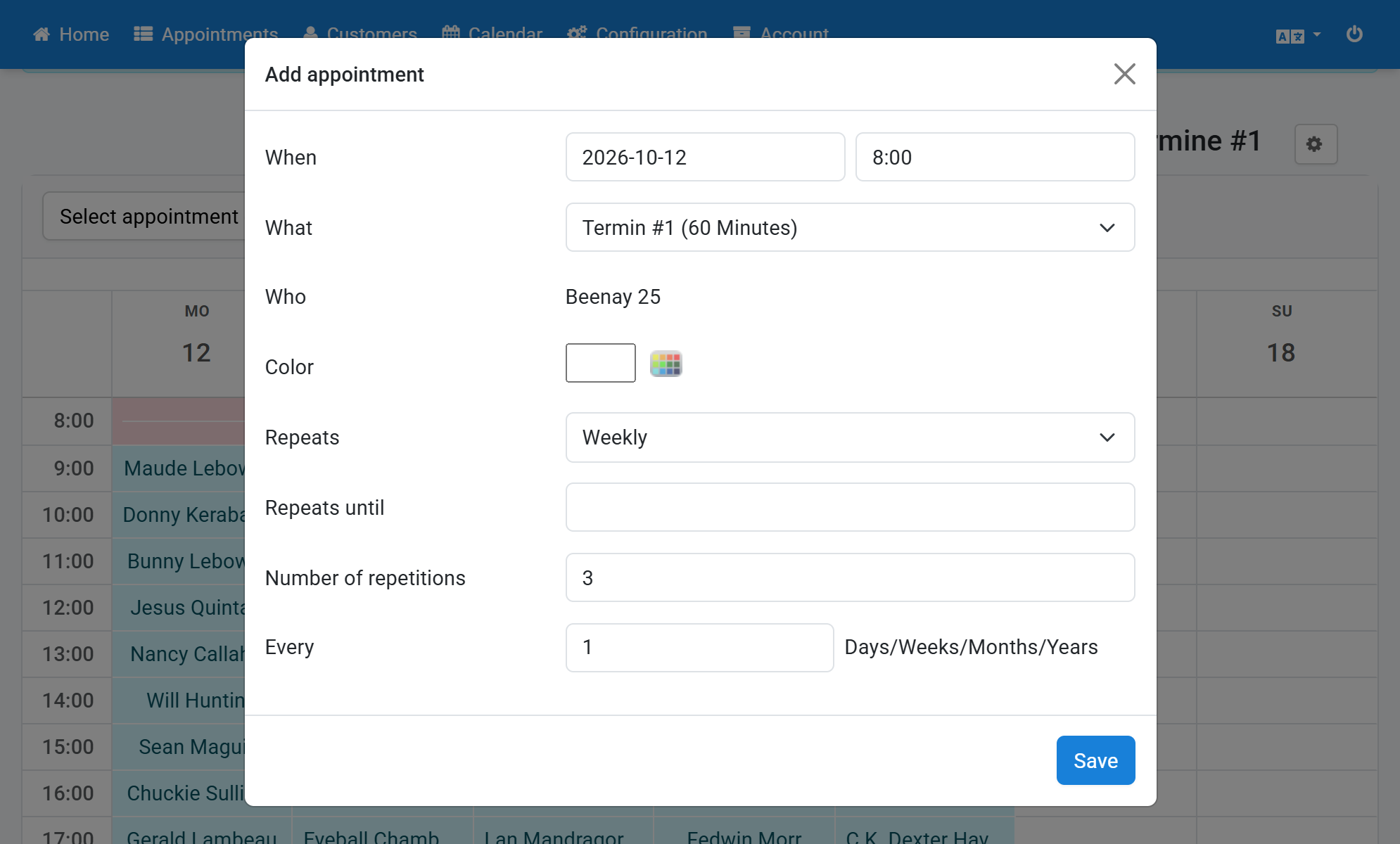
Click Save
9
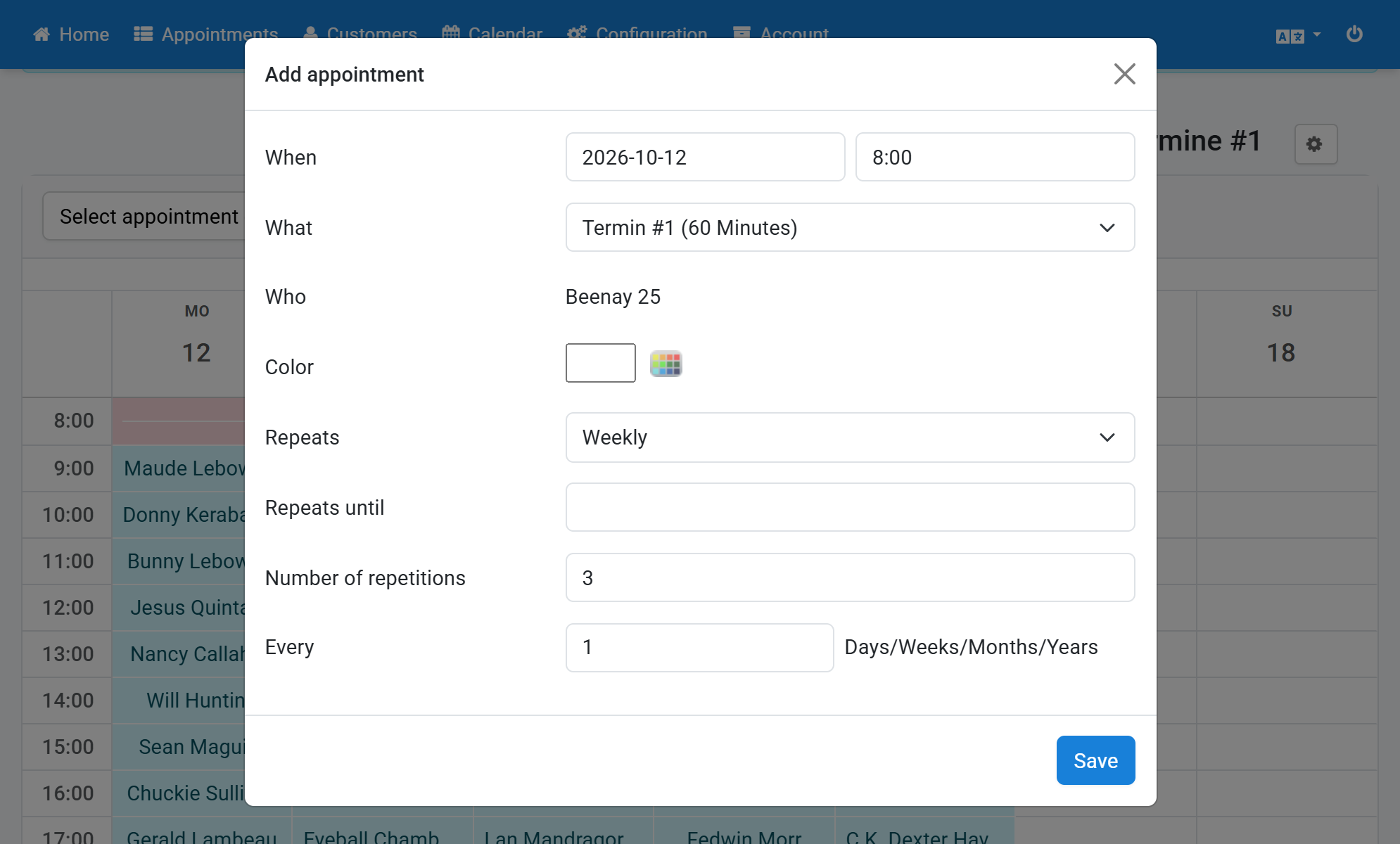
Check the customer data
10
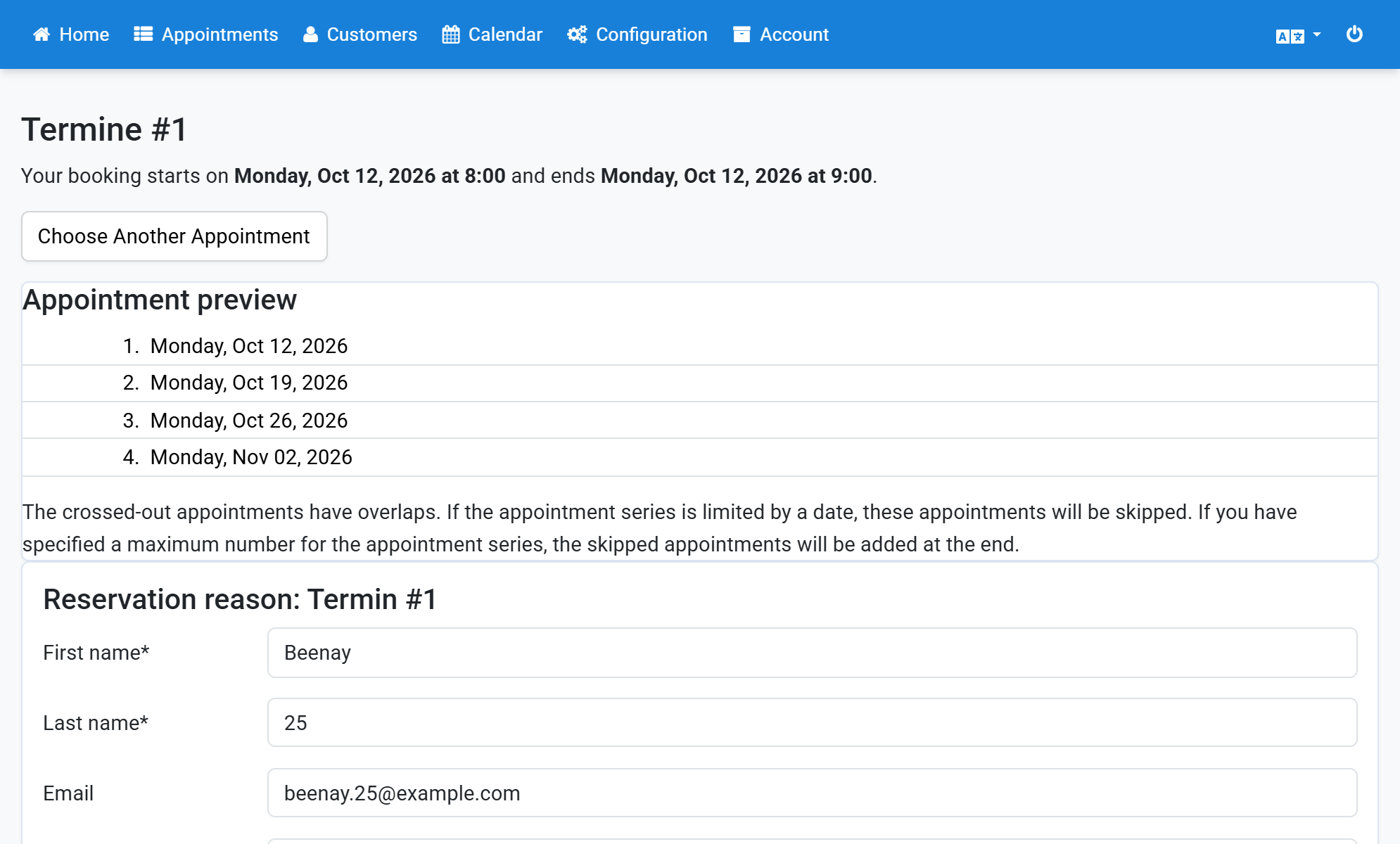
Select who should be notified about the appointment
11
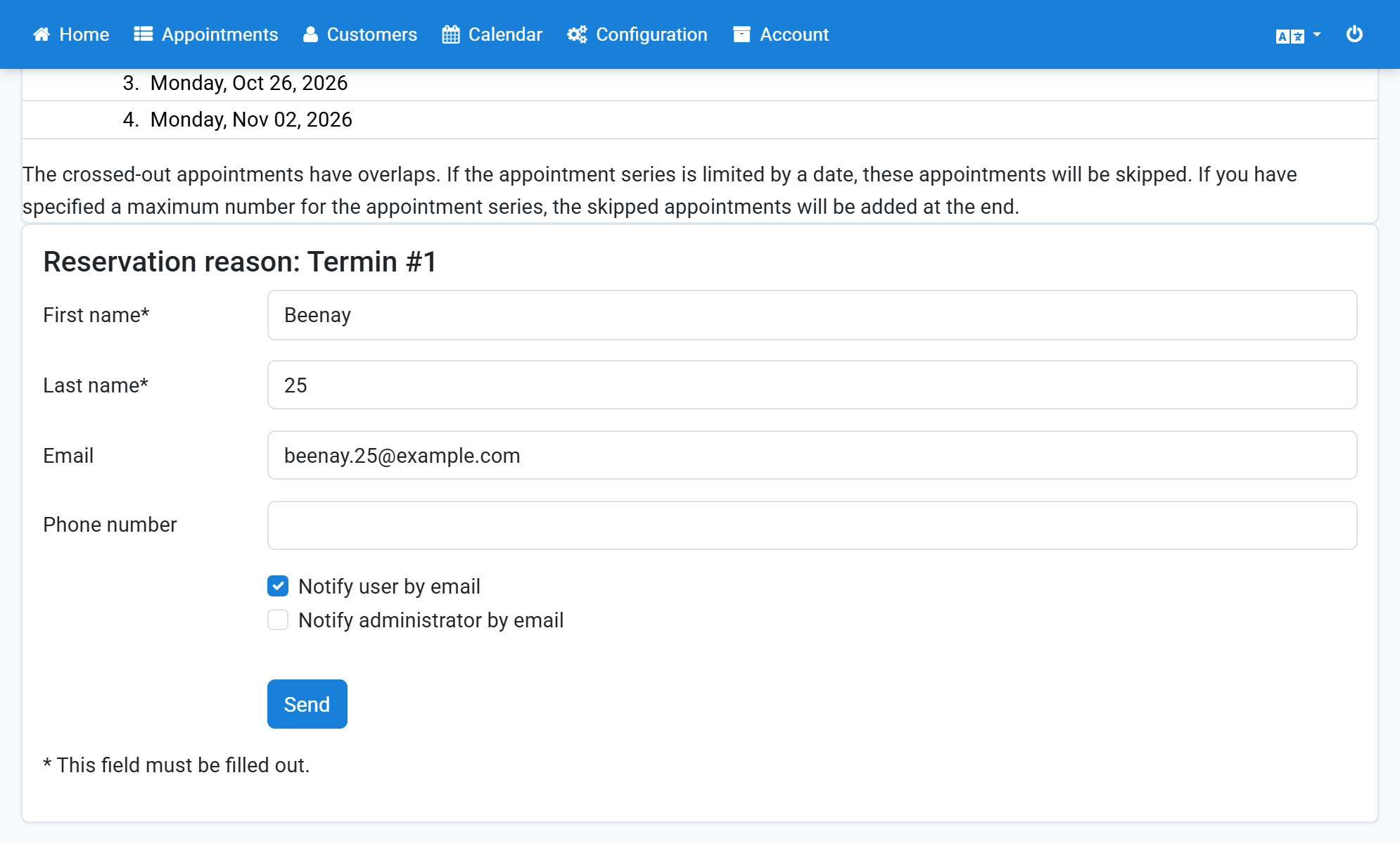
Click Send
12