Deactivate or Delete User Account
- Click Customers in the navigation bar.
- Click Details on the right hand side.
- Click Deactivate Account in order to deactivate the customer account.
- The account is now marked as deactivated.
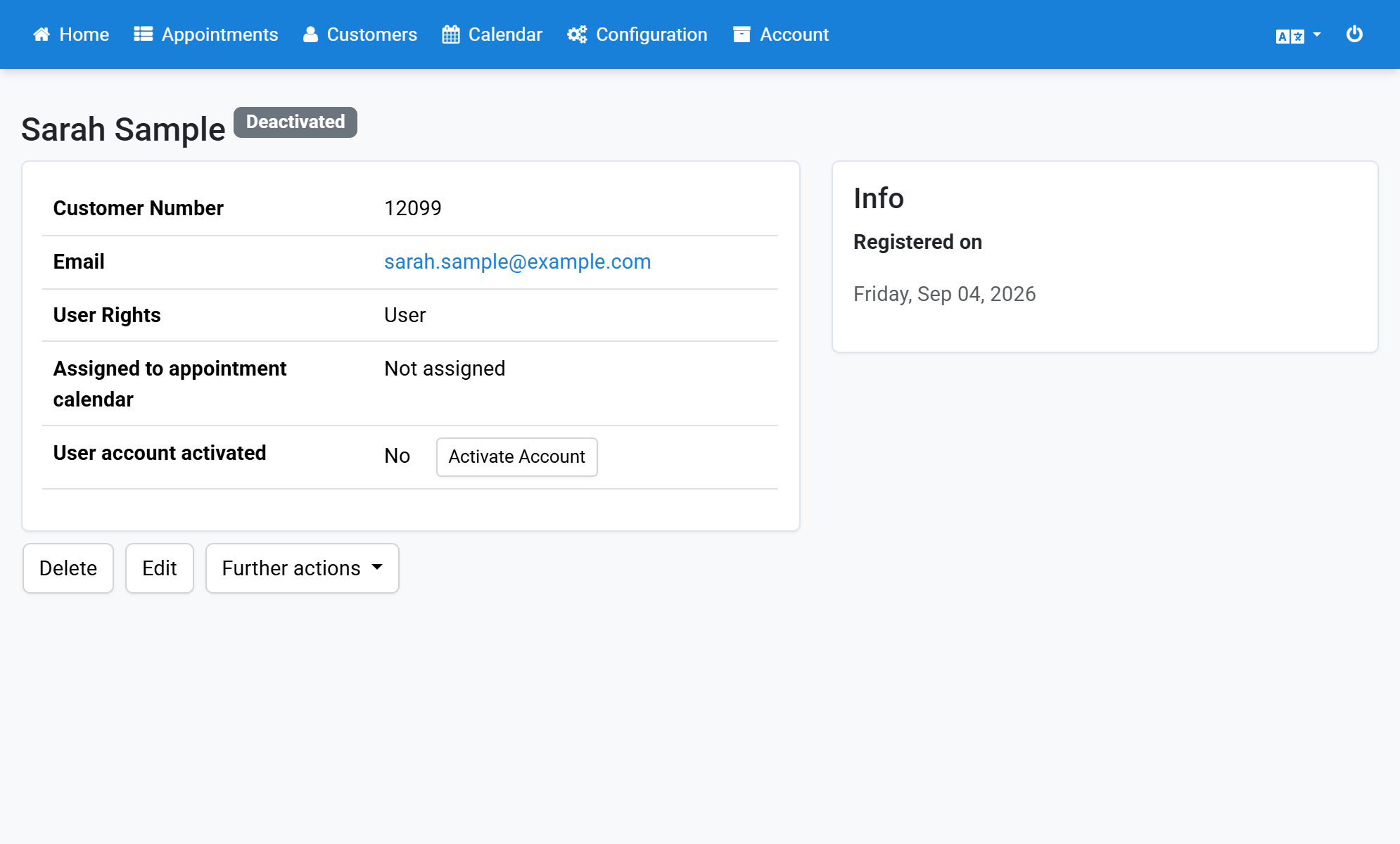
- Click Delete in order to delete the customer account.
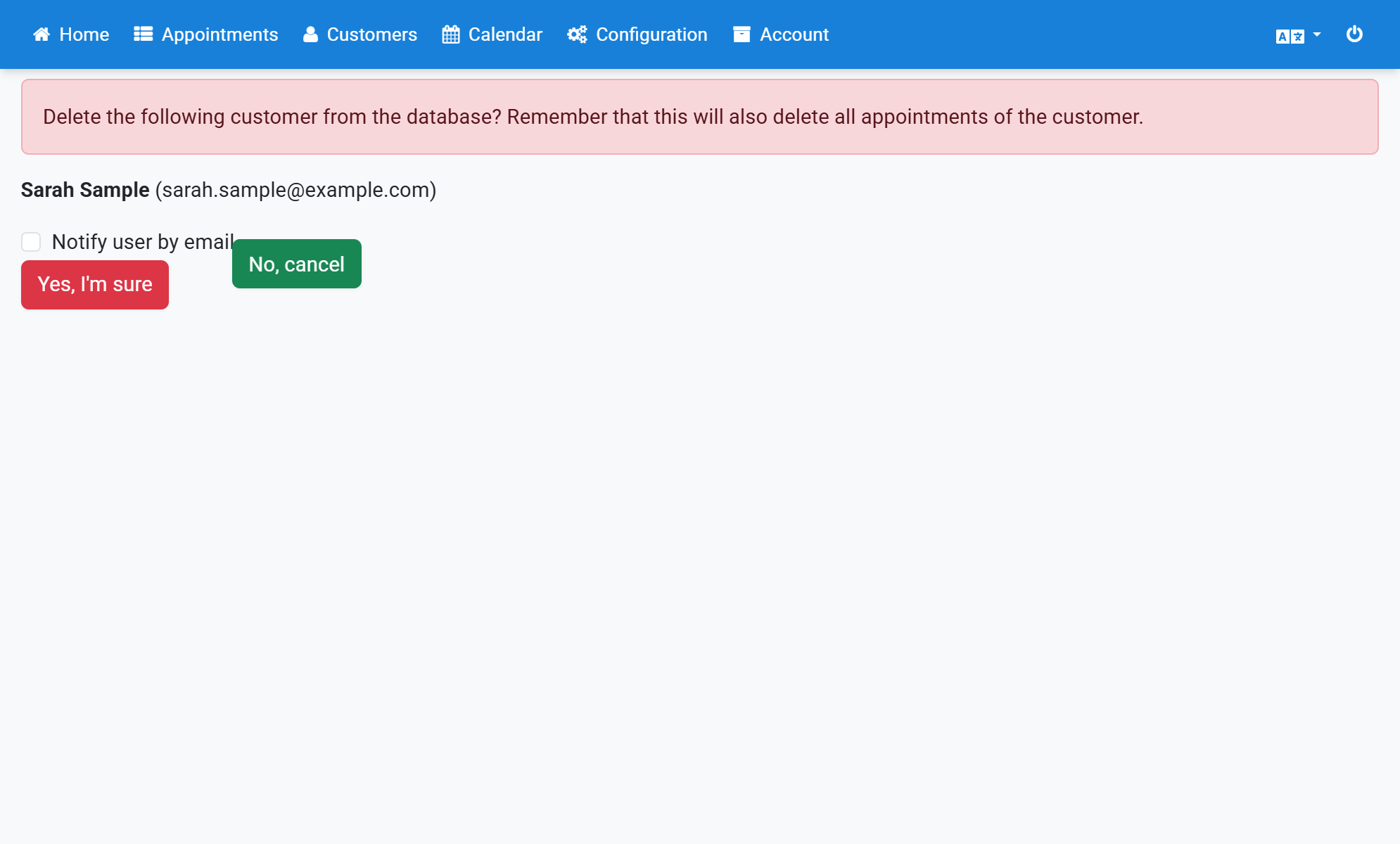
- Confirm deleting the account with a click on Yes, I'm sure.
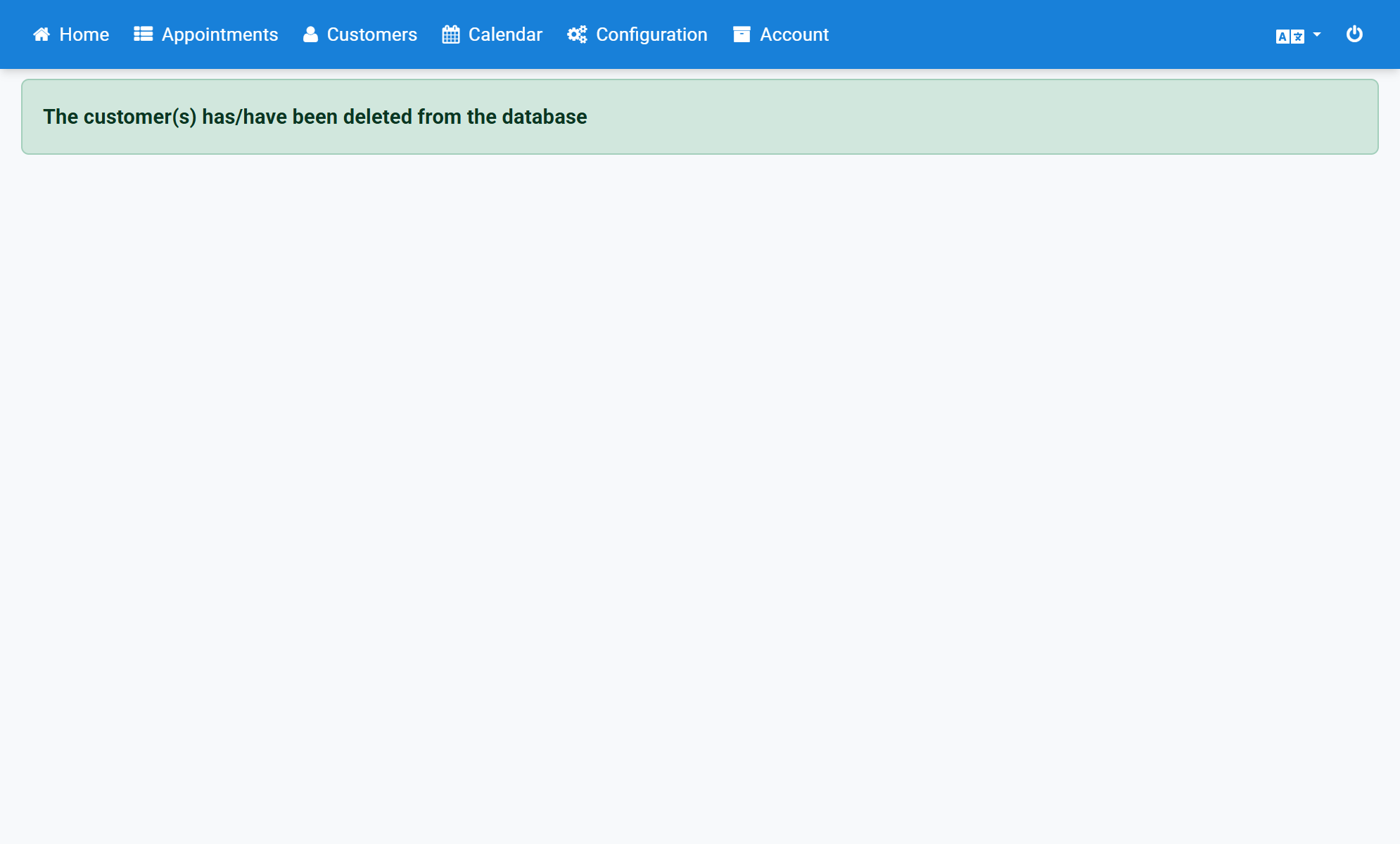
- You will see a success message that the account has been deleted.
Screenshots
Click Customers in the navigation bar
1
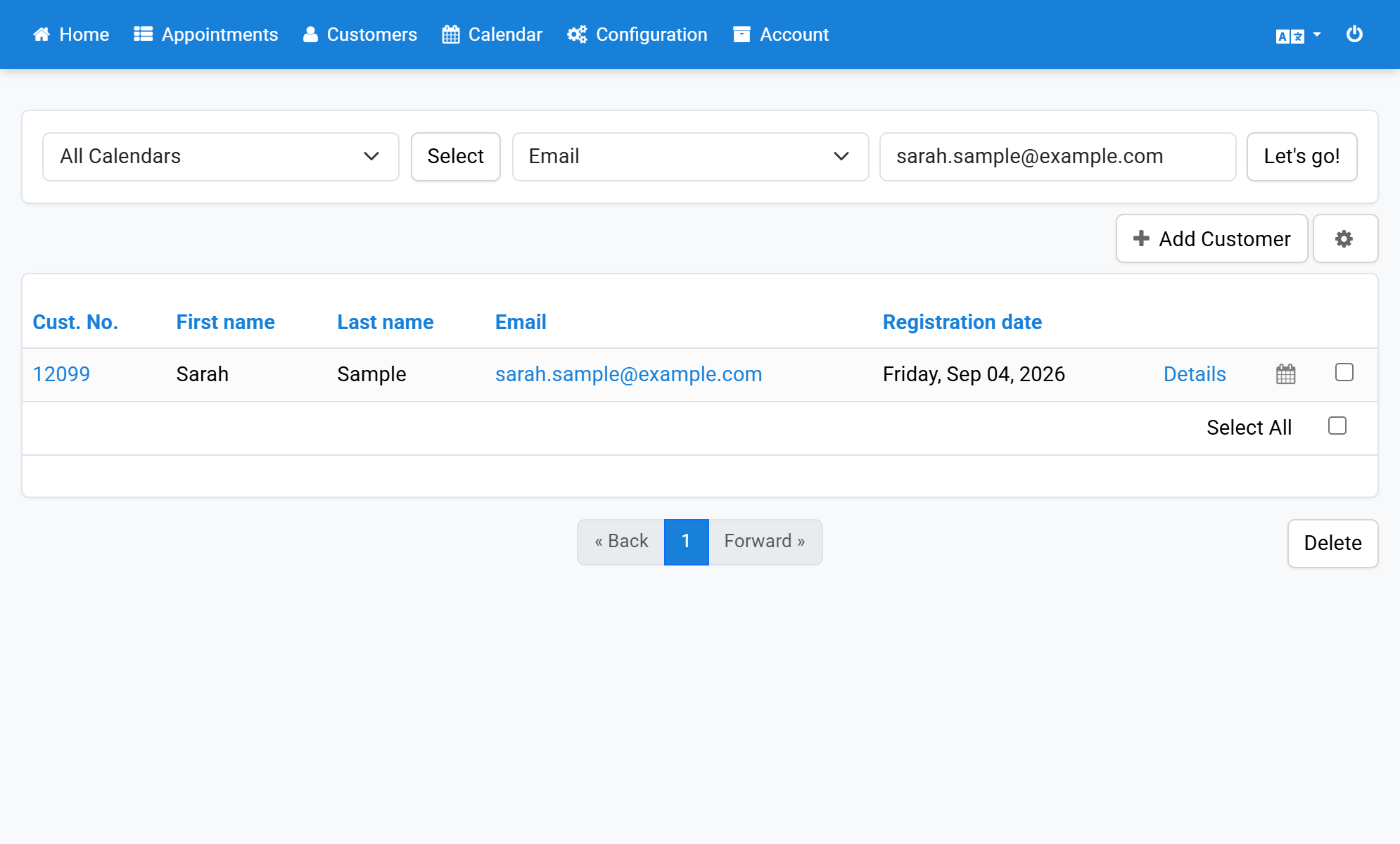
Click Details on the right hand side
2
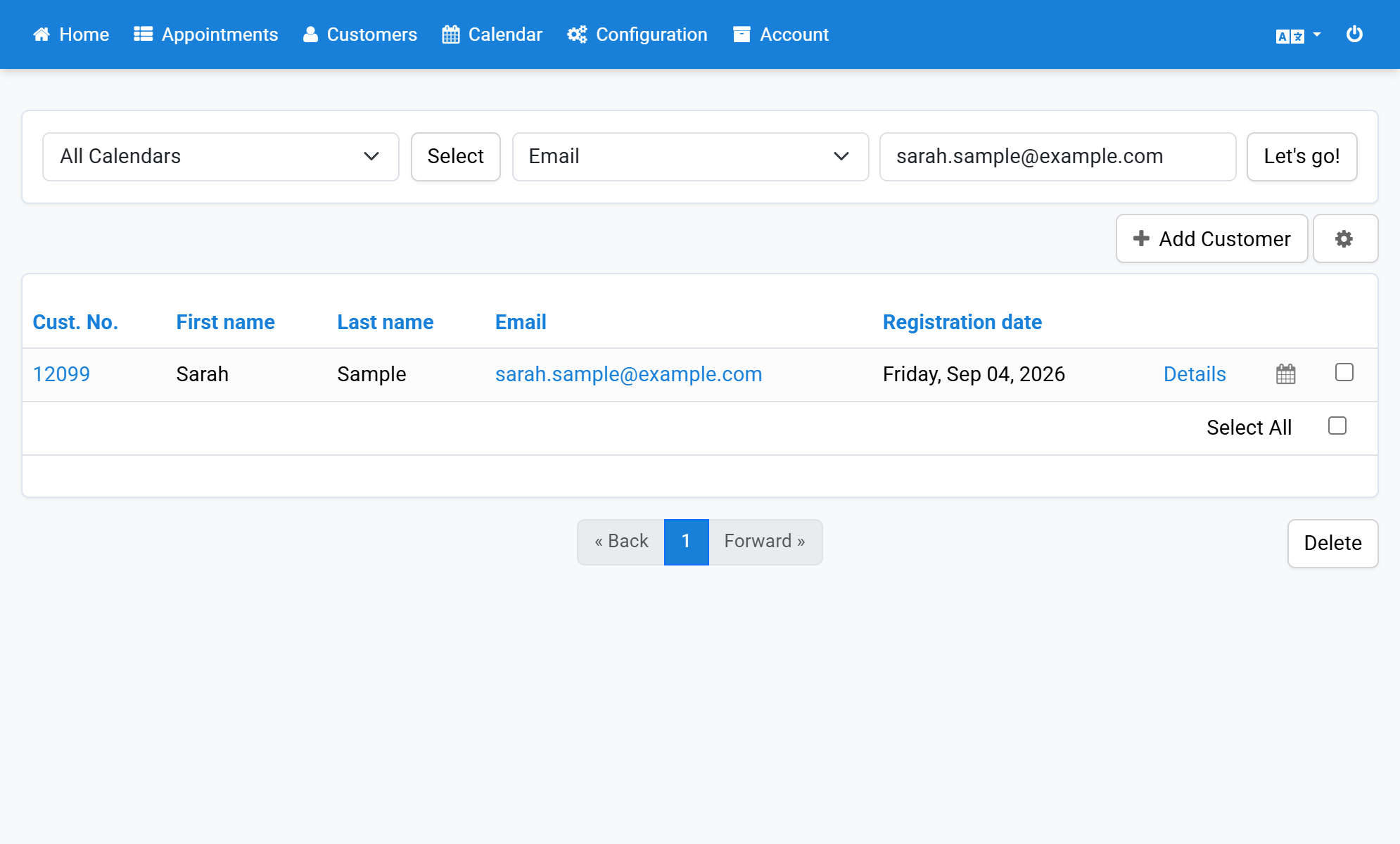
Click Deactivate Account in order to deactivate the customer account
3
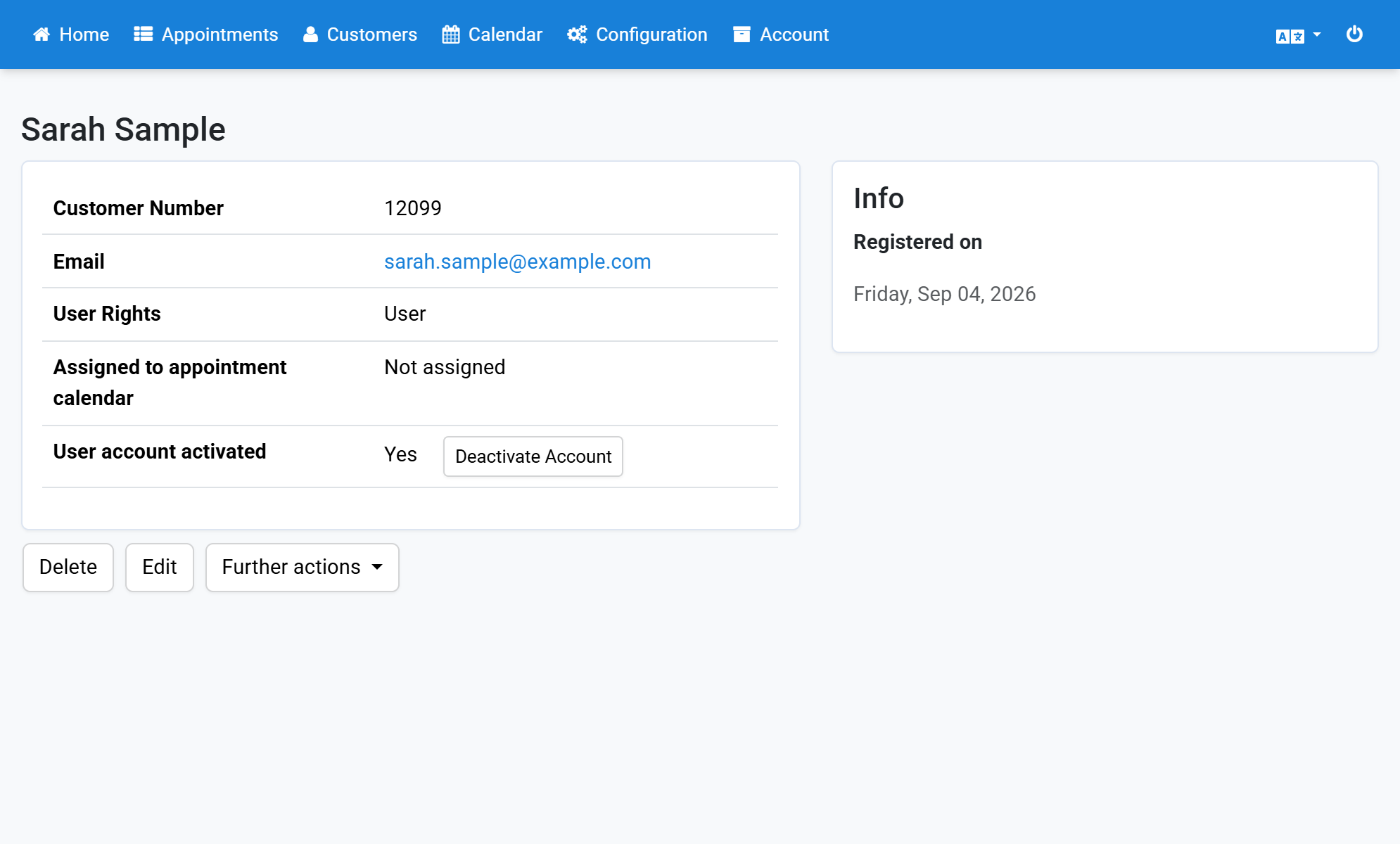
The account is now marked as deactivated
4
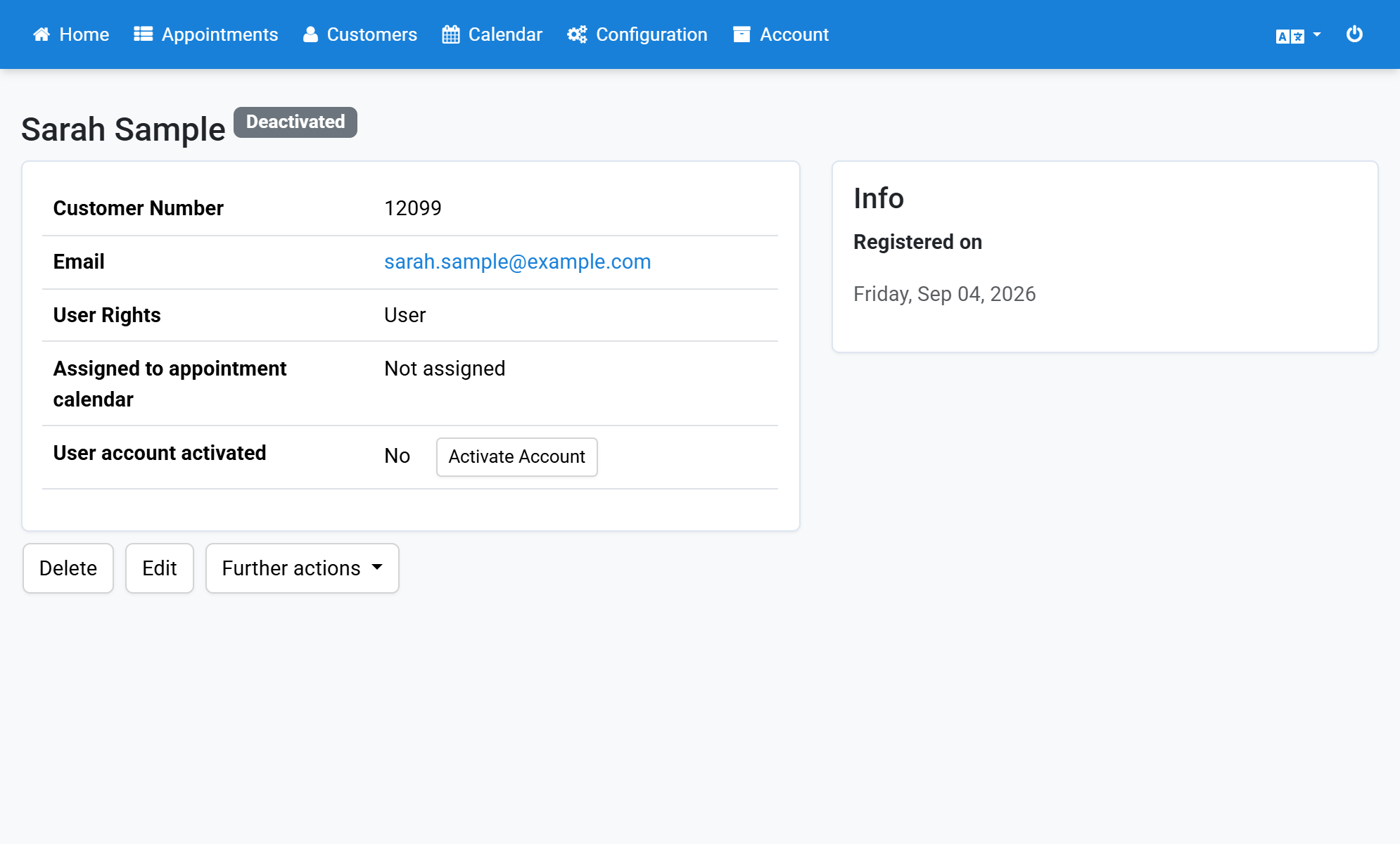
Click Delete in order to delete the customer account
5
Confirm deleting the account with a click on Yes, I'm sure
6
You will see a success message that the account has been deleted
7