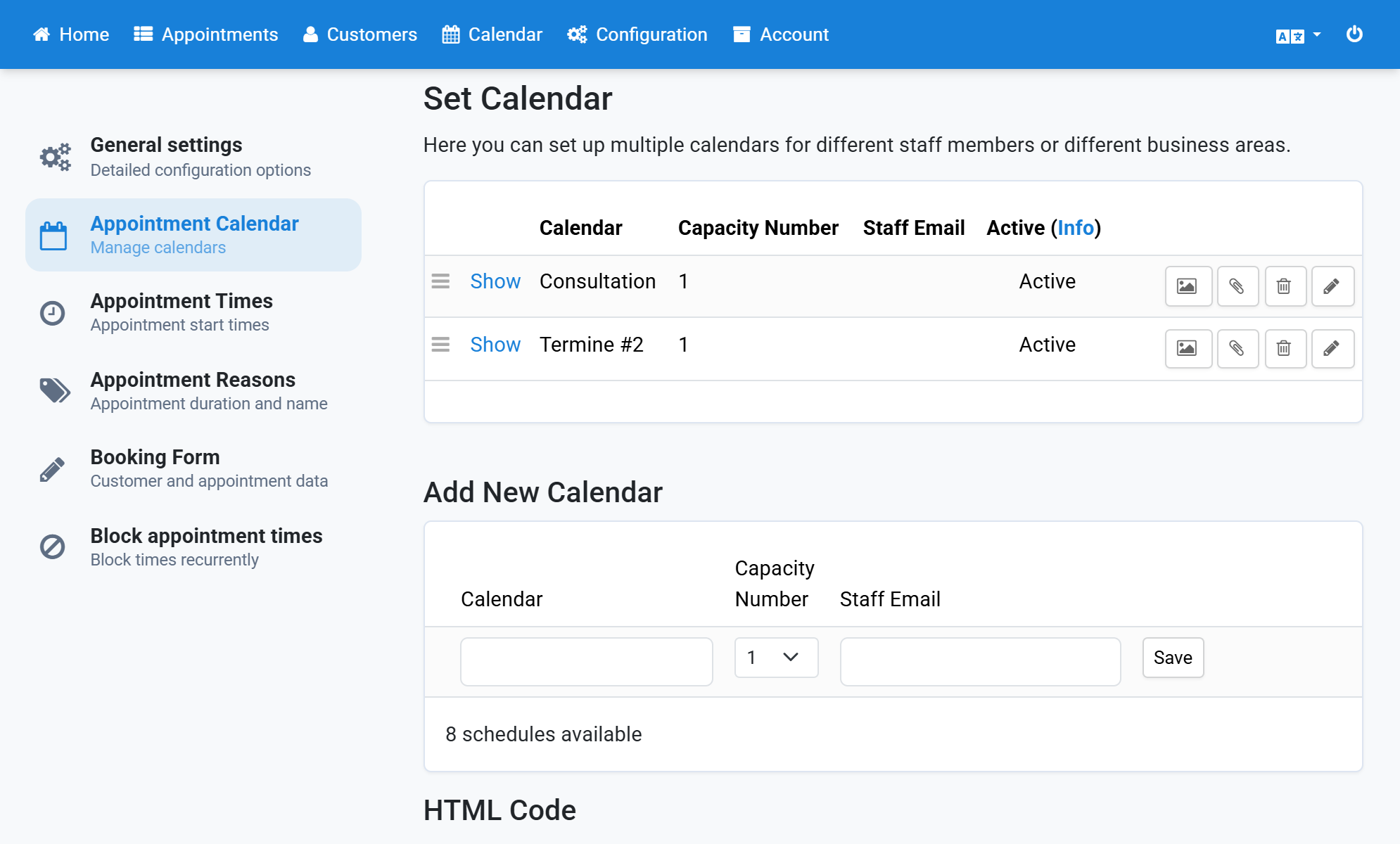
Change Calendar Name
The calendar name is shown in the customer view and in the admin area. Give the calendar a meaningful name to make the choice easier for your customers.
- Click Configuration in the navigation bar.
- Click Appointment Calendar in the subnavigation bar.
- Click the pencil icon Edit next to the calendar you want to change.
- Enter the new name for the calendar.
- Click Save.
- The calendar appears in the list with the new name.
Screenshots
Click Configuration in the navigation bar
1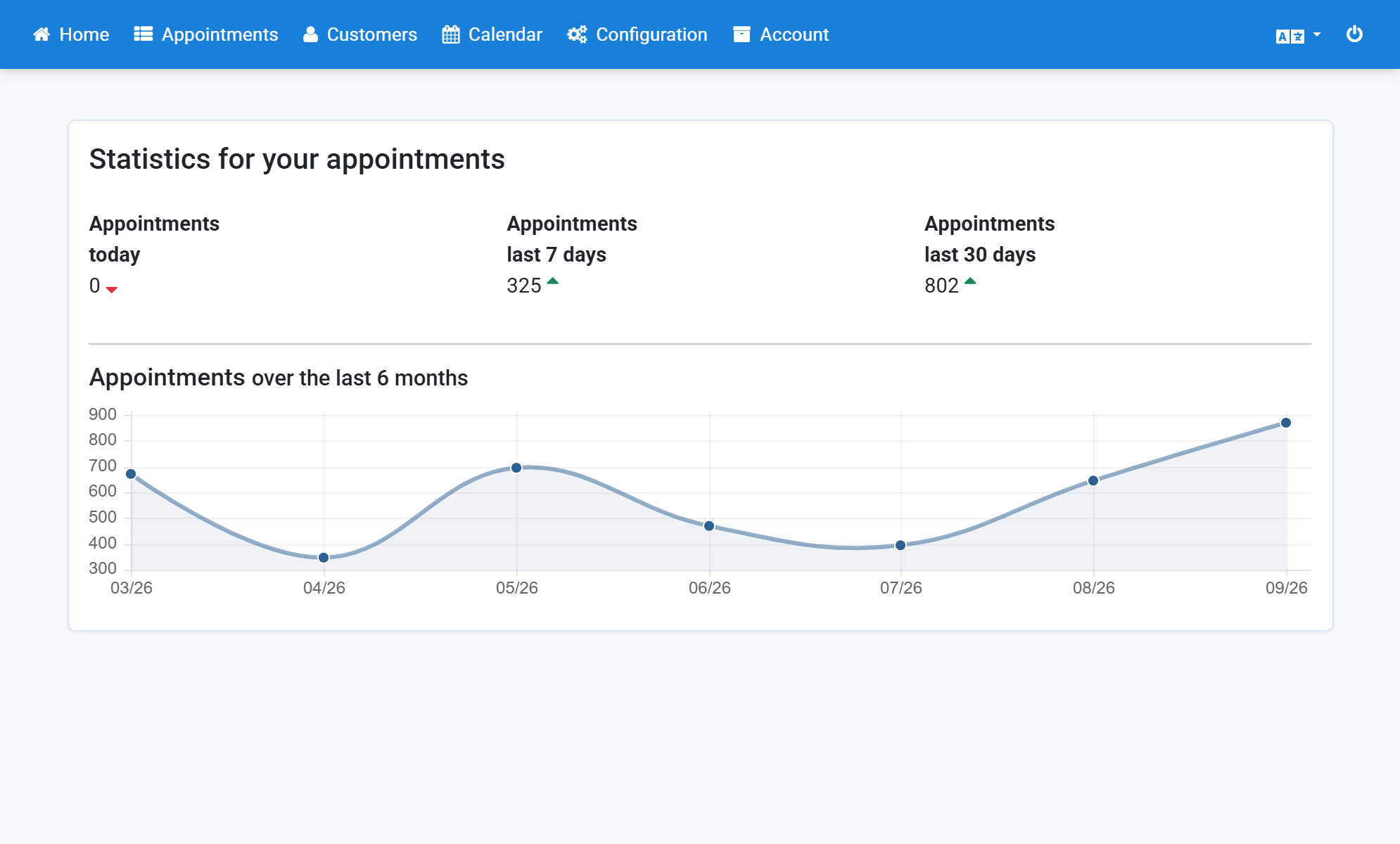
Click Appointment Calendar in the subnavigation bar
2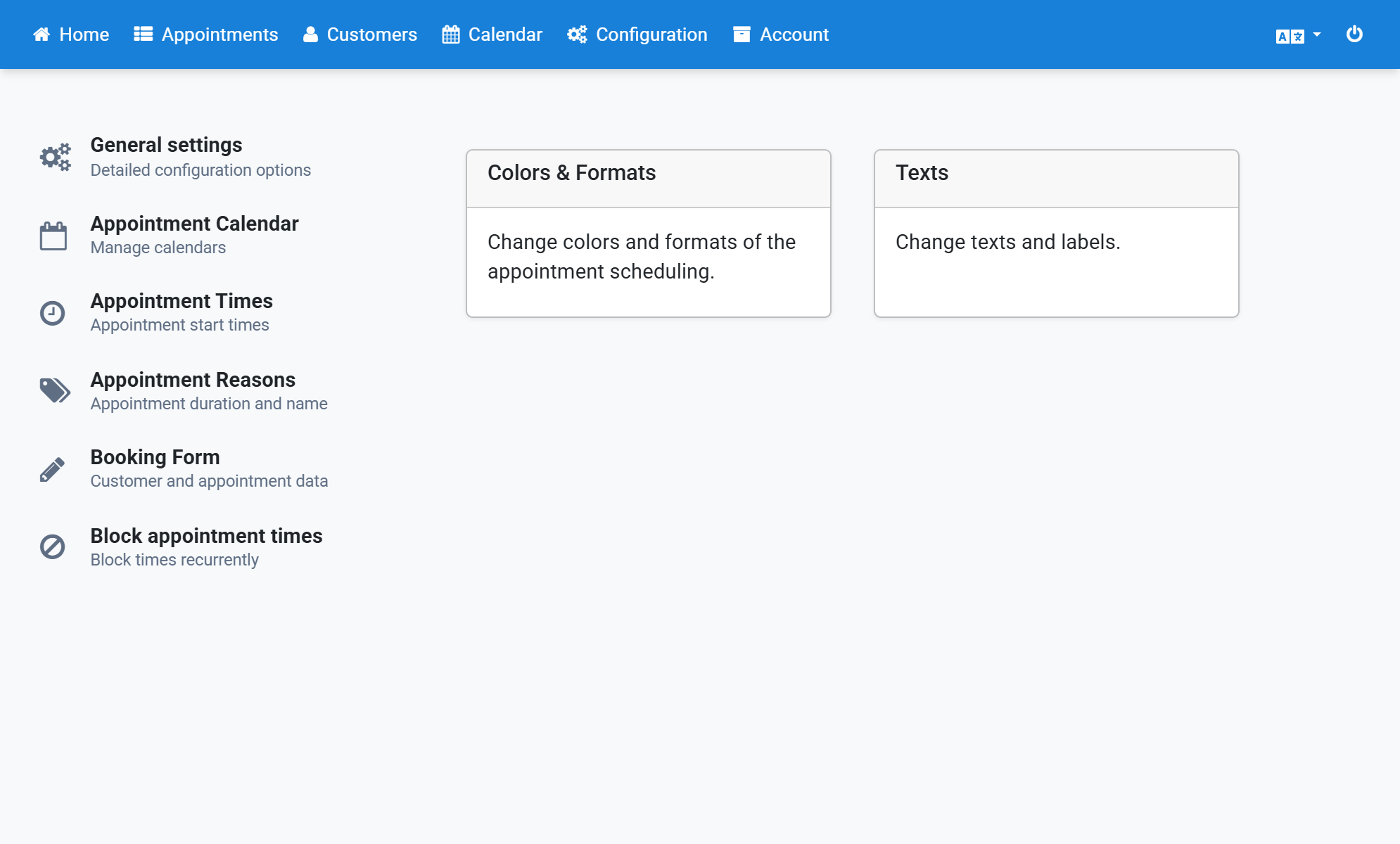
Click the pencil icon Edit next to the calendar you want to change
3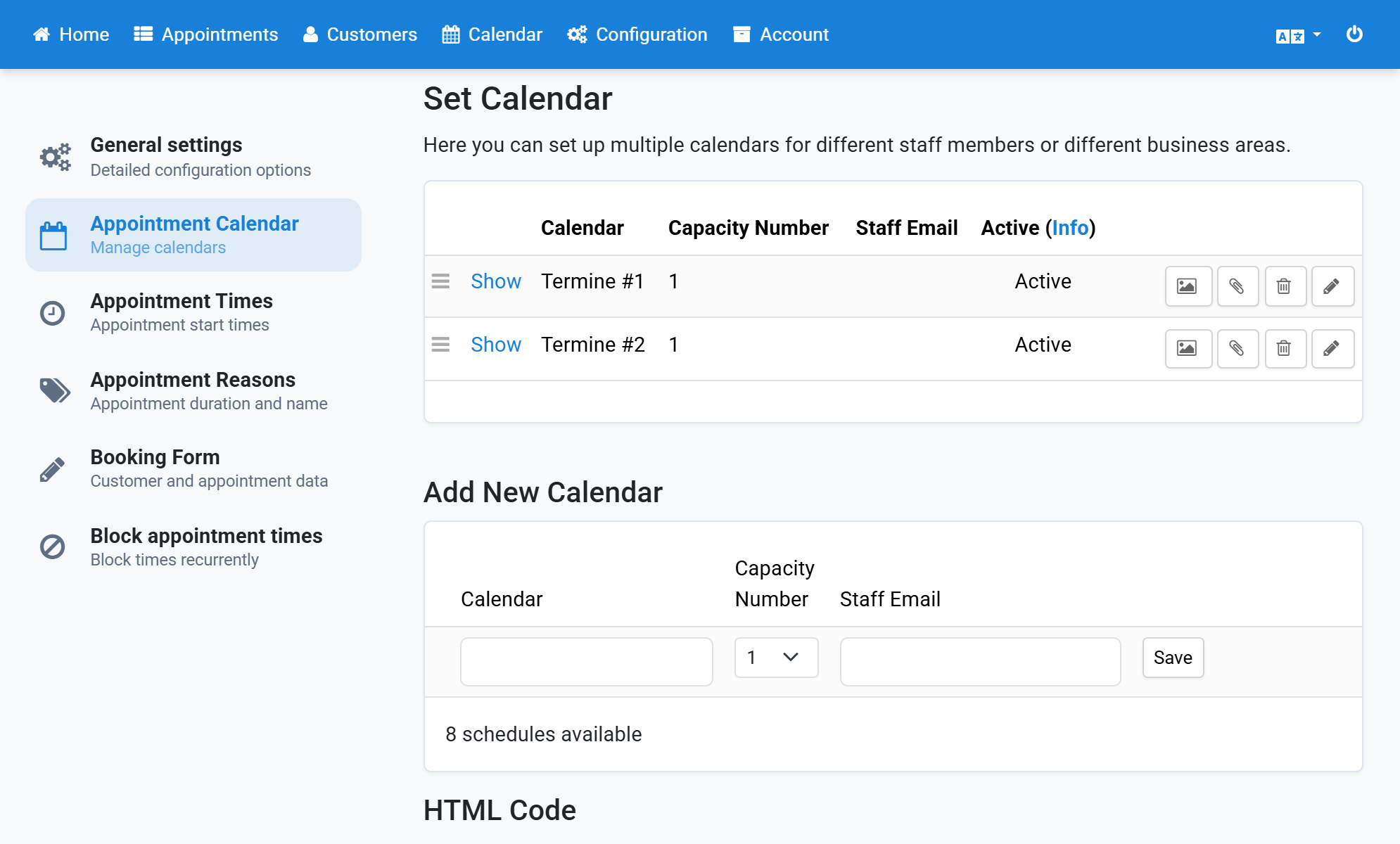
Enter the new name for the calendar
4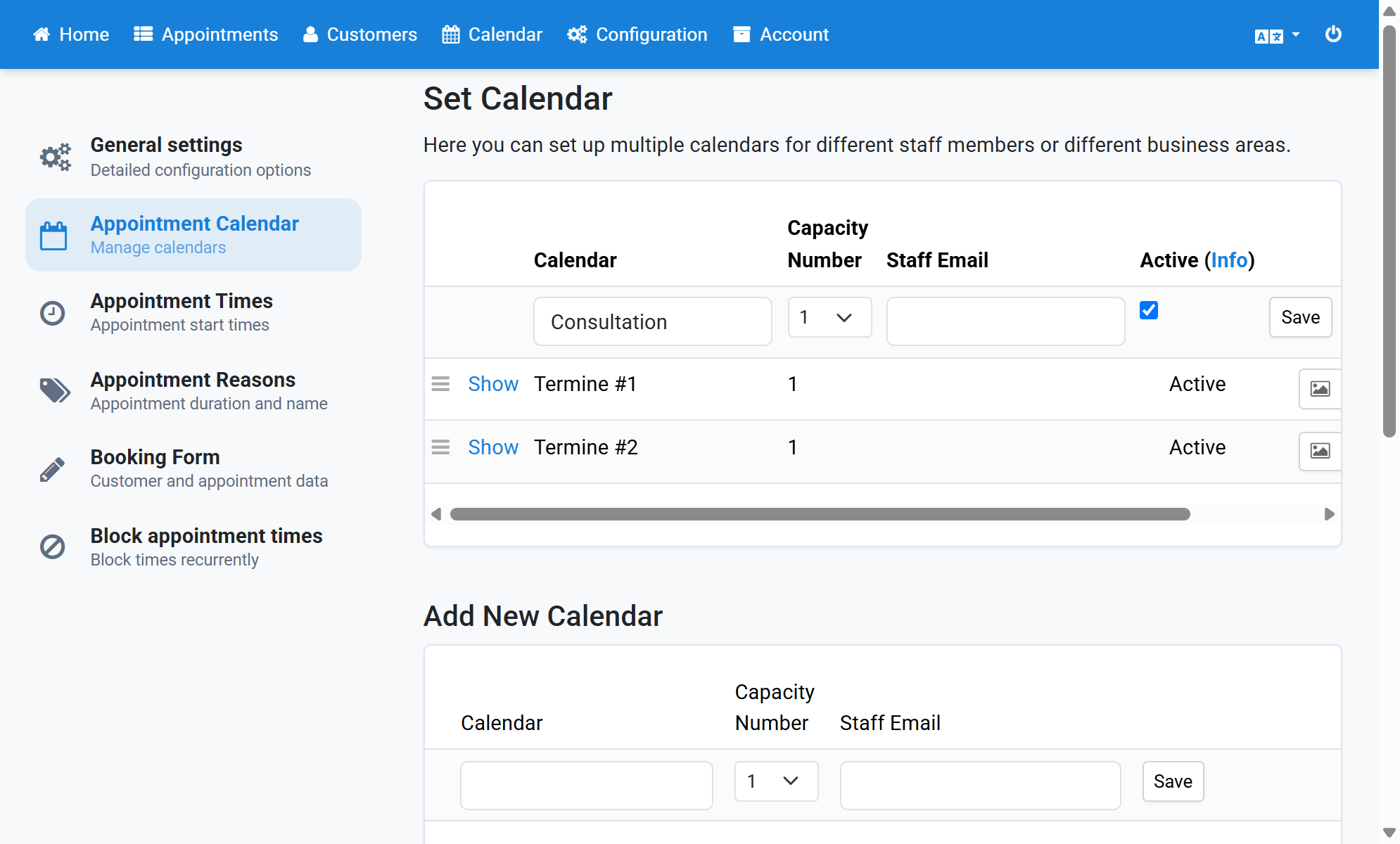
Click Save
5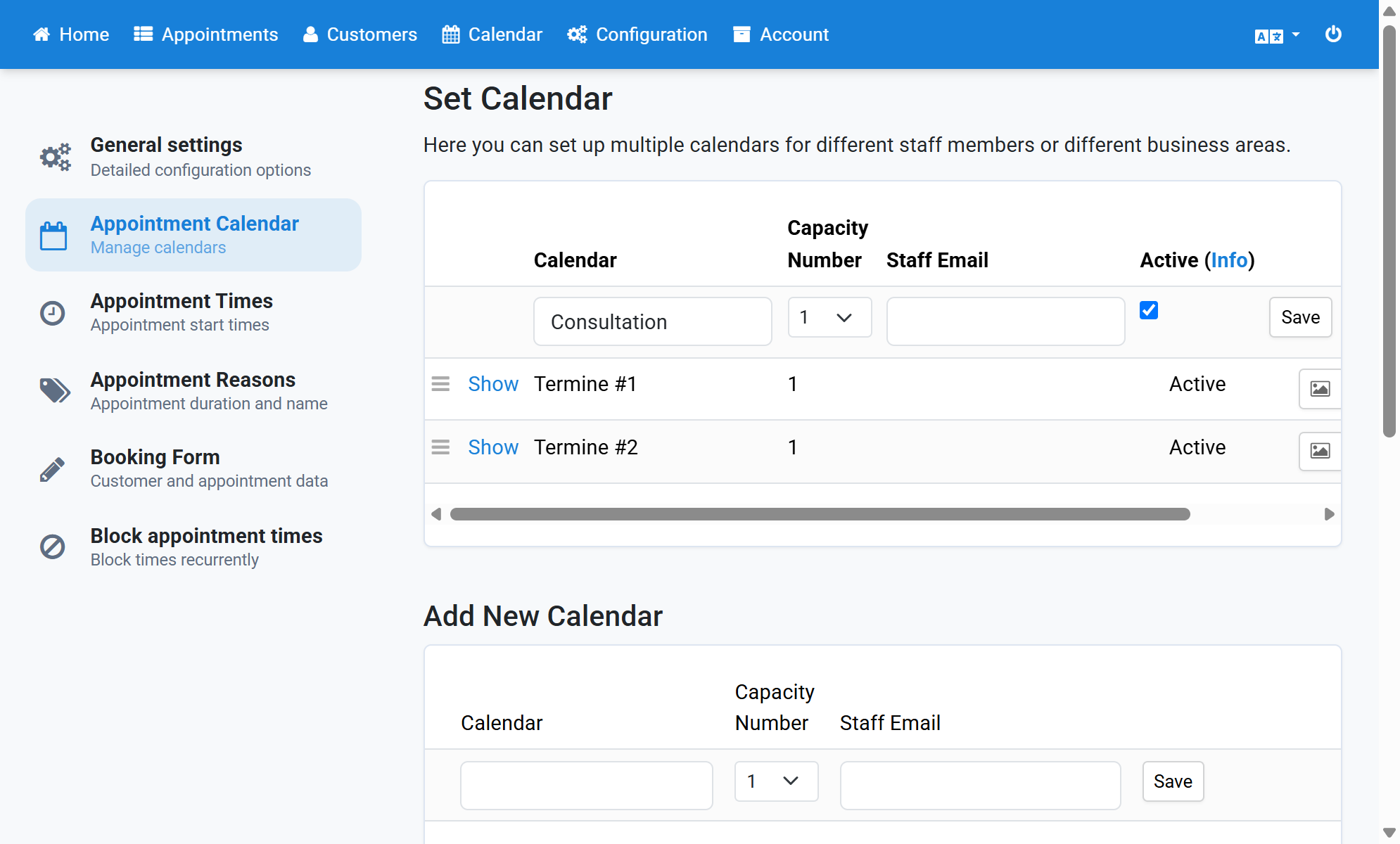
The calendar appears in the list with the new name
6